5 Google Ads Auto-Apply Traps Burning Your SME Budget
By AdAudit Pro ·
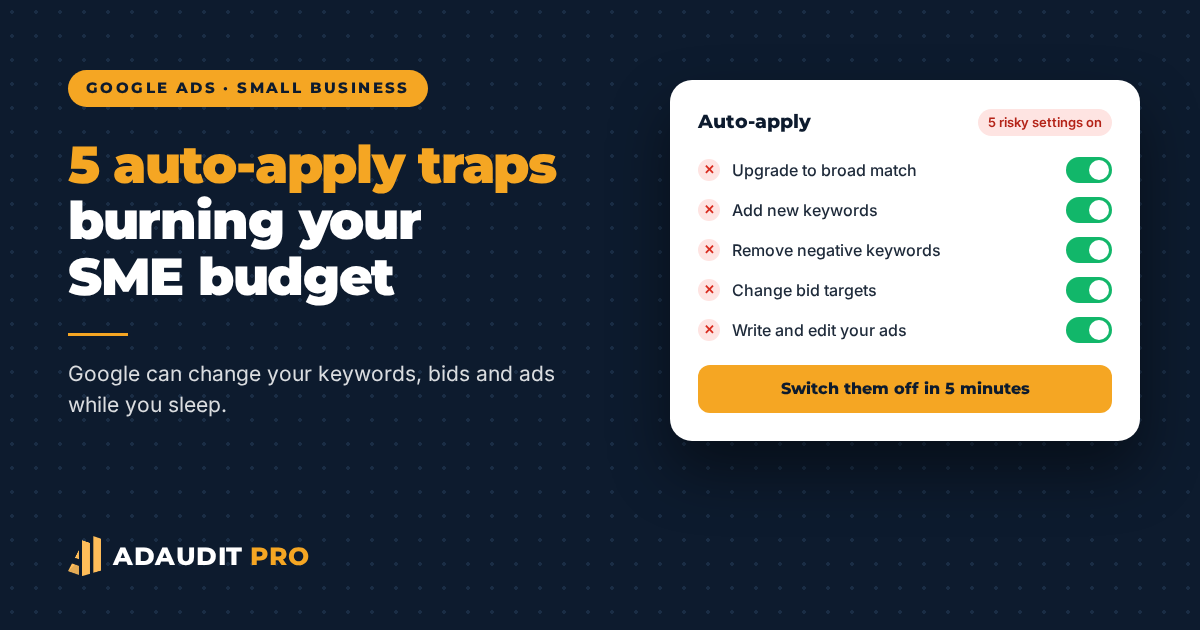
Have you ever logged in to Google Ads and found keywords you never added, a bid strategy you never chose or ads you never wrote? You are not imagining it. It is probably auto-apply.
Auto-apply lets Google accept its own recommendations on your behalf. It is easy to switch on, often during account set-up or after clicking a friendly prompt, and many small business owners forget it is running. Each change looks small. Together, they can move your budget away from the searches that bring in sales.
What is auto-apply in Google Ads?
Google Ads makes recommendations to “improve” your account, and each one raises your Optimisation Score when you accept it. Auto-apply accepts selected types of recommendation automatically, usually without telling you first. You can see and change these settings on the Recommendations page, under Auto-apply.
The problem is not that every recommendation is bad. The problem is that recommendations are designed for accounts with lots of conversion data. When a small account has only a handful of conversions a month, the system has very little evidence to go on, yet it still makes changes.
Trap 1 — Upgrading your keywords to broad match
Broad match lets your ads show for searches Google considers related to your keyword. For a big account with strong conversion data, that can find new customers. For a small account, it often means paying for searches that are only loosely connected to what you sell.
What to check: look at the Search terms report for the last 30 days. If you see many searches you would never have chosen, and they have clicks but no conversions, broad match is probably costing you money.
Trap 2 — Adding new keywords automatically
The “Add new keywords” recommendation suggests keywords Google thinks are relevant. When auto-applied, these keywords go live straight away, often without negative keywords to keep them in check. This is one of the most common ways “head lice” keywords get into an account: low-cost terms that quietly bring in the wrong visitors every day.
What to check: sort your keywords by date added (or check the Change history) and review anything you did not add yourself.
Trap 3 — Removing keywords and negatives you rely on
Some recommendations remove “redundant” or “non-serving” keywords, or negative keywords Google says are blocking your ads. A negative keyword that blocks your ads is often doing exactly what you wanted: stopping you paying for searches like “free”, “jobs” or a competitor’s name.
What to check: in Change history, filter for keyword removals. Put back any negatives that were protecting you from irrelevant searches.
Trap 4 — Changing your bid strategy and targets
Bidding recommendations can switch your strategy or adjust your target CPA or target ROAS. This matters most when your conversion tracking is not clean. If Google is counting page views or button clicks as conversions, a new bid strategy will simply chase more of those “ghost” conversions.
What to check: make sure the bid strategy and any targets are ones you chose. Before changing bidding, check that your primary conversions are real sales or real enquiries.
Trap 5 — Writing ads and expanding where they show
Other recommendations create or edit ads and assets, or expand your reach to more placements, such as search partner sites or optimised targeting. New ads may not match your landing page, and wider reach can spend budget on audiences that rarely buy.
What to check: read your live ads as if you were a customer. Do they make the same promise as your landing page? Then check whether your Search campaigns are also showing on partner sites or the Display Network.
How to switch off auto-apply
- In Google Ads, open Recommendations.
- Click Auto-apply.
- Review each tab (for example, ads and assets, keywords and targeting, bidding and budgets).
- Untick any type of recommendation you want to review by hand.
- Save, then check Change history for the last 30 to 90 days to see what was already applied.
You can still read every recommendation and accept the good ones yourself. The difference is that you decide.
Why a high Optimisation Score does not mean more sales
Optimisation Score measures how many of Google’s recommendations you have accepted. It does not measure profit, landing page conversion or whether your conversions are real. That is why so many small businesses see a score of 90% or more while sales stay flat. Judge your account by cost per sale and return on ad spend, not by the score.
How AdAudit Pro checks for auto-apply traps
Every All-in-One Audit connects to your Google Ads account in read-only mode and checks for auto-applied changes, broad match on the wrong searches, conversion tracking that counts the wrong actions and bid strategies that do not suit your data. The report ranks up to five critical issues and gives you plain-English steps to fix them yourself.
Frequently Asked Questions
Should I turn off auto-apply in Google Ads?
For most small business accounts, yes. Switching it off does not stop recommendations; it means you review each one before it changes your account. Keep only the types you are happy for Google to apply without asking.
Does turning off auto-apply lower my Optimisation Score?
It can, because the score rises when recommendations are accepted. The score does not affect how much you pay per click or where your ads rank, so a lower score is not a problem in itself.
How do I see what auto-apply has already changed?
Open Change history in Google Ads and look at the last 30 to 90 days. Changes made by auto-apply are listed there, so you can undo anything that does not suit your business.
Are all Google Ads recommendations bad?
No. Some are useful, such as fixing disapproved ads or adding missing assets. The point is to check each one against your own sales data before you accept it.
Is Auto-Apply Spending Your Budget for You?
Get your All-in-One Audit for £55. Read-only access, no contract, and a specialist-reviewed report that shows exactly what to switch off and fix first.
Google Ads menu names can change over time. AdAudit Pro is a trading name of George Own Ltd and is not affiliated with Google.